
How I Built a Credit Card Transaction Tracker with Claude
I get email alerts every time a transaction is posted to my credit card. Hundreds of them pile up in Gmail over time. To access the information I actually want, like how much am I spending, on what, and is it trending up, I had to log into my bank account, download transactions as a CSV, and manually analyze this information in Google Sheets. While my bank's website provides some tools for tracking spending, the website is hard to navigate, the categorization of expenses is sometimes wrong, and the data is not presented in an easy-to-consume way.
I wanted a system that would automatically pull those transactions into a Google Sheet, categorize them correctly, and send me a weekly summary. No third-party app, no Plaid integration, no monthly fee. Just Gmail, Google Sheets, and Apps Script.
I built the whole thing with help from Claude, iterating from a rough idea to a polished tool in a few hours. Here is how it went.
Parsing Credit Card Alert Emails
I uploaded a raw alert email, the full HTML source, and asked Claude to write an Apps Script that would read these from Gmail and load them into a Google Sheet.
How to View the HTML Source of Emails in Gmail
First, open the email in Gmail and select "Show original" from the "More" menu (three-dot menu).
Then, click "Copy to clipboard."

The first version handled the basics: search Gmail for transaction alert emails, parse out the transaction date, amount, merchant name, account type, and last four digits of the card from the HTML. It wrote each transaction as a row in a sheet called "Transactions" with a frozen header row.

One important design decision came up immediately: how to track which emails have already been processed. Claude used Gmail labels - creating a "TransactionProcessed" label and tagging each email after import. This is cleaner than tracking message IDs in the spreadsheet because it is visible in Gmail, survives sheet resets, and means the script only ever searches for unprocessed emails.
The script also handles first-run backfill: if today is March 7, it grabs everything from January 1 of the current year forward, so you start with a full YTD picture instead of an empty sheet.
Key design choice
Gmail labels as state management. The script creates a "TransactionProcessed" label and tags each email after import. This is more reliable than tracking message IDs in the sheet - it survives sheet resets, is visible in Gmail, and keeps the search query simple.
The Gas Station Problem
The first version worked great - until it hit a gas station transaction. My bank sends a different email template for gas station purchases. Instead of a "Date" field in the HTML, gas station emails use "Posted Date" with a slightly different layout.
Claude's initial parser used a single regex pattern that matched the standard template. Gas station emails silently failed - no error, just missing transactions. Once I flagged this, Claude added a second parsing path: try the standard template first, and if key fields are missing, try the gas station template. The fix was straightforward, but it is the kind of edge case you only discover by running real data through the system.
// Standard template
const dateMatch = html.match(/Date<\/td>[\\s\\S]*?<td[^>]*>([^<]+)/i);

// Gas station fallback
if (!dateMatch) {
  dateMatch = html.match(/Posted Date<\/td>[\\s\\S]*?<td[^>]*>([^<]+)/i);
}
What I Learned About Iterating with AI
This build reinforced something I keep seeing: the first version Claude produces is functional but generic and not fine-tuned to what I want. The real value comes from pushing back and directing the iteration. Here are three moments where that mattered.
The ARRAYFORMULA that was too brittle
My first approach to categorize transactions was using an ARRAYFORMULA that used nested IFs to map merchant names to categories. It worked in theory, but it was brittle. Adding a new merchant meant editing a formula that was already 15 lines long. If anyone accidentally edited the wrong cell, the whole column would break.
I had to iterate and asked Claude to create something more maintainable. Claude replaced it with a separate "Categories" sheet, a simple two column lookup table (merchant keyword in column A, category in column B). The transaction sheet now does a lookup against this table. Adding a new category means typing two cells in a separate sheet. No formulas to edit, no risk of breaking anything.

The custom menu that made it feel like a real tool
At first the script was just a function you ran from the Apps Script editor. That is fine for a developer, but I wanted something my partner could use too. Claude added a custom menu in the Google Sheet that appears on open, with options to import transactions, reset categories, send a summary email immediately, and set up or remove automated triggers. That one change turned a script into a "micro product".

function onOpen() {
  SpreadsheetApp.getUi()
    .createMenu("Transaction Tracker")
    .addItem("Import Transactions", "processEmails")
    .addItem("Reset Categories Sheet", "resetCategories")
    .addSeparator()
    .addItem("Send Summary Now", "sendWeeklySummary")
    .addSeparator()
    .addItem("Set Up Triggers", "createTriggers")
    .addItem("Remove Triggers", "removeTriggers")
    .addToUi();
}
Getting the weekly summary right
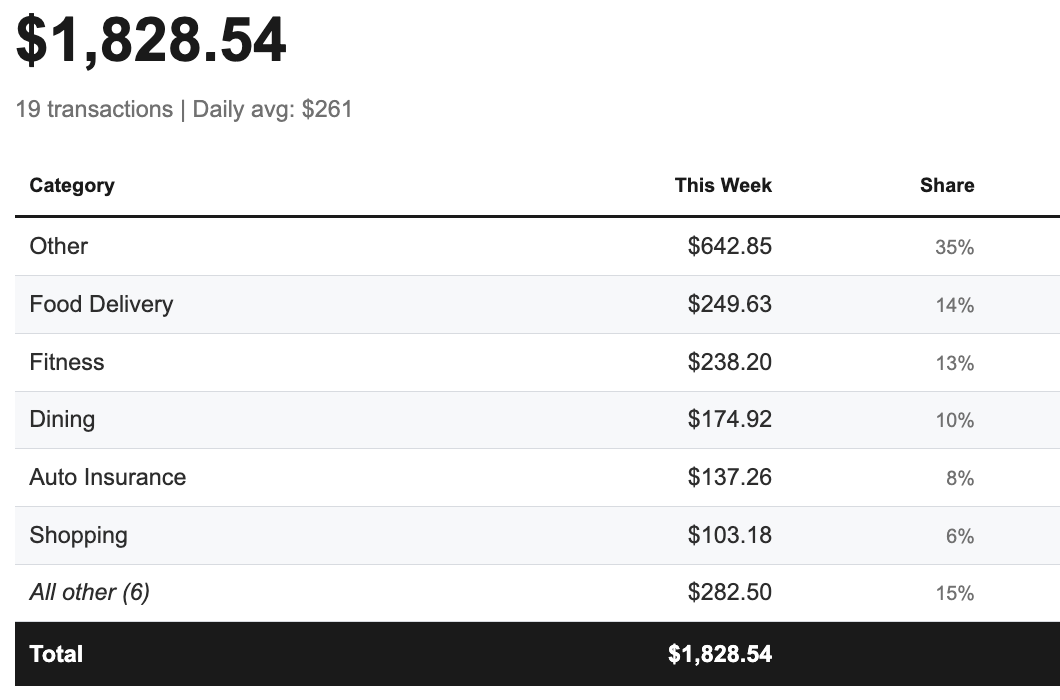
The weekly email summary went through a couple rounds. The first version was a plain text dump of totals by category. It was accurate but hard to scan. I asked Claude to make it an HTML email with a clean table layout, sorted by spend amount descending, with a total at the bottom. The final version looks like something a fintech app would send you - except it is running on free Google infrastructure and I control every line of it.

The Weekly Email That Makes It Worth It
The automated weekly summary email is what transforms this from a spreadsheet into something I actually use. Every Saturday morning, the script scans all transactions from the past 7 days, groups them by category, and sends a formatted HTML email with a breakdown of where the money went.
It shows each category's weekly total, sorted from highest to lowest spend. At the bottom, there is a grand total for the week. No login required, no app to open - it just shows up in my inbox.
This is the feature I would point to if someone asked why building your own tools matters. Other budgeting apps send notifications too. But this one uses my categories, runs on my trigger schedule, and shows exactly the numbers I care about. Also, all the data lives within my Google account which is nice from a privacy perspective.
What I Would Tell Someone Considering This
Every Saturday morning, a summary of my spending shows up in my inbox. I didn't download an app, connect a bank API, or pay for a subscription. The whole thing runs on Gmail, Google Sheets, and about 400 lines of Apps Script that I didn't write by hand. It took 16 prompts and a few hours. The first version was wrong in several ways. The final version is exactly what I wanted, because I kept telling Claude what "exactly" meant. That's the real skill: not prompting perfectly on the first try, but knowing what to push back on when the output isn't right.
If you already use Google Sheets for anything, you are closer to building your own tools than you think. The pattern is usually the same: start with the problem you are trying to solve, find a relevant data source (emails, files, APIs), pull it into a sheet, add some business logic to process this data and take some action, and automate this process using triggers. The technology is free and the AI makes the coding part trivial.
Credit Card Transaction Tracker Build Session - Conversation Log
As a valued newsletter subscriber, you can view the complete 16-turn conversation log from this build session. It includes every prompt, response, and iteration, from the first working parser to the final weekly email, so you can see exactly how the tool was built.
Credit Card Transaction Tracker: Full Conversation Log
This section is exclusively available to newsletter subscribers. Subscribe below to access it.
Already a subscriber? Log in
DISCLAIMER: This content is provided for educational purposes only. All code, templates, and information should be thoroughly reviewed and tested before use. Use at your own risk. Full Terms of Service apply.
Thanks for your feedback!
Your input helps improve the content for everyone.
